

Creating a Windows service for the RLM server
- Download an Admin bundle from our website
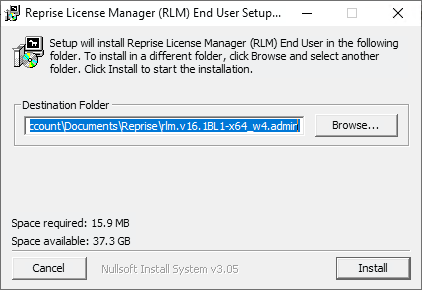
- Run the installer
- (Optional) Specify the RLM install location
- Open a command prompt (CMD) or PowerShell terminal
- Change Directories to the location where RLM was extracted in step #3. For example:
cd C:\Users\[username]\Documents\Reprise\rlm.v16.1BL1-x64_w4.admin - Determine which flags you will want to start RLM with. A full list of flags can be found in our documentation.
- Enter your command.
- Start with
rlm - Include
install_service -service_name <service_name>-dlog <debug-name>- Any other flags from step #6Example:
rlm -install_service ‑service_name example-rlm-service ‑dlog my-debug-log.log
- Start with
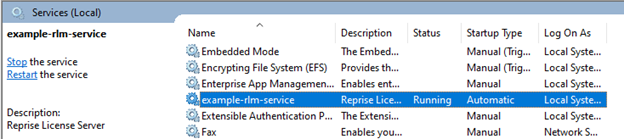
- RLM should now be configured to run as a service automatically. You can verify this by checking the services application on Windows:
- In the start menu type services, and click the services application from the search results
- Find your service in the list of services. This will be what you named the service in step #7
No items found.
No items found.